
How to Publish on WordPress: Easy Steps for Success
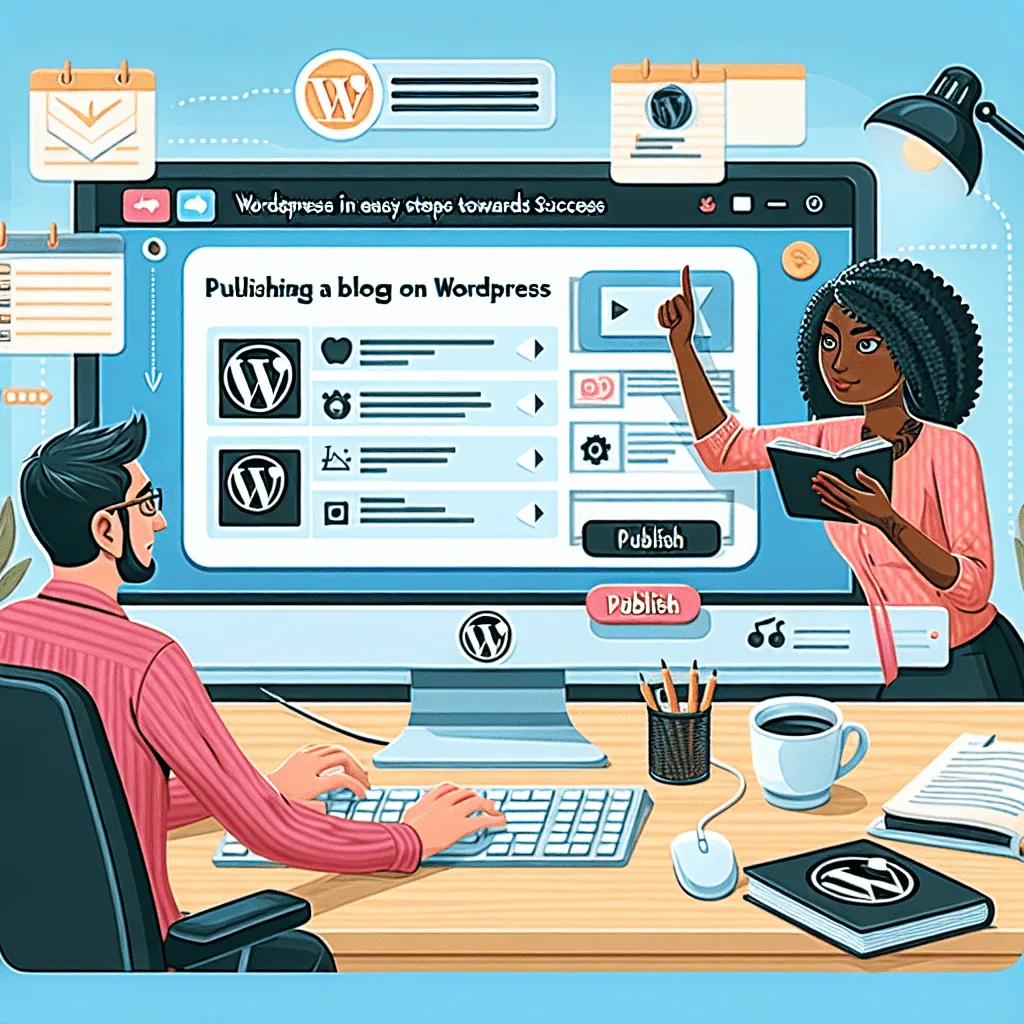
To publish on WordPress, navigate to the dashboard, click ‘Posts’, then ‘Add New’. Enter your content, and click ‘Publish’ when ready.
WordPress stands as a powerful tool for bloggers, businesses, and content creators eager to share their ideas with the world. Its user-friendly interface simplifies the publishing process, making it accessible for beginners while offering advanced features for seasoned users. With WordPress, personalizing your content with themes, multimedia, and interactive elements is straightforward.
The platform also provides excellent opportunities for SEO optimization, ensuring your posts are primed for search engines right from the start. Whether you’re crafting your first blog post or managing a complex content strategy, WordPress streamlines your workflow, offering a seamless transition from draft to published work.
Introduction To Wordpress Publishing
Welcome to the world of WordPress publishing, where sharing your story, products, or services online becomes a breeze. This section provides a step-by-step guide on how to get your content live using the world’s most popular content management system.
The Popularity Of Wordpress
WordPress powers over 40% of all websites on the internet. Its ease of use and flexibility make it the go-to platform for bloggers, businesses, and e-commerce sites alike.
Benefits Of Choosing Wordpress
- User-friendly interface - WordPress offers a simple dashboard that makes publishing content straightforward.
- Customizable designs - Thousands of themes cater to all styles and industries.
- Extensive plugin library - Enhance your site’s functionality with plugins for SEO, security, and more.
- SEO friendly - WordPress sites tend to rank well on Google, helping you reach a wider audience.
- Community support - A vast community of users and developers are ready to help.
Setting Up Your Wordpress Account
Welcome to the digital world where sharing your voice is just a few clicks away! Setting up your WordPress account is the first step on this exciting journey. It’s simple, and we’ll guide you through each phase. Let’s get your story online!
Choosing A Domain Name
Your domain name is your unique address on the web. It’s how readers find you. Think of it as your home on the internet. Make it memorable and relevant to your content!
- Keep it short: Easy to type, easy to remember.
- Use keywords: Reflect your blog’s focus.
- Avoid numbers and hyphens: They confuse people.
- Choose the right extension: .com is king, but there are many others.
Selecting A Hosting Service
Think of a hosting service as the foundation for your WordPress site. It’s where all your data lives. A good host keeps your site fast and online all the time.
| Hosting Feature | Why It Matters |
|---|---|
| Uptime | Sites that are always available rank better. |
| Speed | Fast sites make readers and search engines happy. |
| Support | Get help when you need it, 24/7. |
| Security | Keep your content safe from hackers. |
Start with shared hosting if you’re new. It’s affordable and easy to upgrade. As your site grows, consider more powerful options like VPS or dedicated hosting.
Exploring Wordpress Dashboard
Welcome to your first steps into the world of WordPress! Understanding the WordPress Dashboard is crucial for effectively managing your website. Let’s dive in and explore the essential features and tools that will help you navigate and utilize WordPress efficiently.
Overview Of The Dashboard
The WordPress Dashboard serves as the control center for your website. It provides a quick overview of your site’s content, activity, and settings. It’s the first screen you see after logging in, and it’s designed to give you a snapshot of your website’s operations.
- Welcome Panel: Introduces the main features.
- Quick Draft: A tool for saving ideas or drafts fast.
- Activity: Shows recent comments and posts.
- At a Glance: Displays a summary of your content and WordPress version.
Key Features And Tools
The Dashboard is packed with tools and features that allow for complete site management. Here are some key functionalities:
| Feature | Description |
|---|---|
| Posts | Create, edit, and manage your posts. |
| Media | Upload and organize media files. |
| Pages | Edit and publish new pages. |
| Comments | Moderate user comments. |
| Appearance | Customize your site’s design and layout. |
| Plugins | Add new functionalities to your site. |
| Users | Manage user access and roles. |
| Tools | Access import and export tools. |
| Settings | Adjust your website’s configuration settings. |
Each tool and feature on the WordPress Dashboard is designed to simplify your website management tasks. Familiarize yourself with these options to enhance your site’s functionality and user experience.
Choosing The Right Theme
Themes give your WordPress site its look and feel. They’re crucial for branding and user experience. Think of themes as outfits for your website. You want one that looks great and fits perfectly. The right theme can make your site shine. It’s important to choose wisely. Your theme affects site speed, responsiveness, and SEO.
Free Vs. Premium Themes
WordPress offers free and premium themes. Both have pros and cons. Let’s explore.
- Free Themes: Great for beginners. Cost-effective. Often have a supportive community. Yet, they may lack features. Support can be limited.
- Premium Themes: They cost money. Offer more features. Come with dedicated support. Premium themes can give your site a unique look.
| Theme Type | Cost | Features | Support |
|---|---|---|---|
| Free | $0 | Limited | Community |
| Premium | Paid | Extensive | Dedicated |
Installing And Customizing Your Theme
Found the perfect theme? Great! Time to install and customize it.
- Go to your WordPress dashboard.
- Click on Appearance, then Themes.
- Hit Add New button.
- Search for your theme. Click Install, then Activate.
Now, customize your theme. Make it fit your brand.
- Go to Appearance > Customize.
- Change colors, fonts, and layouts.
- Upload your logo.
- Preview changes in real-time.
- Click Publish to save your customizations.
Remember to keep your theme updated. Updates fix bugs and improve security. Enjoy your beautifully themed WordPress site!
Creating Your First Post
Embarking on your WordPress journey begins with your very first blog post. This process is simple and exciting. Craft a post that captures the attention of your readers from the start. Follow the steps below to create a post that stands out and keeps your audience coming back for more. Remember to save your work as you go!
Writing Engaging Content
Writing engaging content is the backbone of a successful blog. Start with a catchy headline that sparks interest. Use short sentences and simple language to keep readers hooked. Here are some tips to enhance your writing:
- Open with a question or an interesting fact.
- Break your content into subheadings for easy reading.
- Keep paragraphs short to maintain reader interest.
- End with a call-to-action to engage your audience.
Adding Images And Media
Visuals play a critical role in storytelling. They break up text and add depth to your post. To add images and other media in WordPress:
- Place the cursor where you want to insert an image.
- Click the ‘Add Media’ button.
- Upload your image or select one from the media library.
- Choose the image size and alignment.
- Insert into post.
Use high-quality images that are relevant to your content. Optimize images for fast loading. Remember to give credit if you’re using someone else’s work.
Enhancing Your Posts With Plugins
Enhancing Your Posts with Plugins on WordPress transforms a simple blog into a powerful website. Plugins add features and flair to your content. Think of them as tools to polish and refine your message. With the right plugins, you can add forms, SEO tools, and social media buttons with ease. Let’s explore how to elevate your WordPress posts using plugins.
Popular Plugins For Beginners
Starting with WordPress means exploring a world of plugins. Here’s a list of must-have plugins for any beginner:
- Yoast SEO - Boosts your SEO game
- Akismet - Fights spam comments
- Contact Form 7 - Creates contact forms
- Jetpack - Enhances security and performance
- Elementor - Aids in page building
How To Install Plugins
Installing plugins is a straightforward process. Follow these steps:
- Log in to your WordPress dashboard.
- Go to the Plugins section.
- Click Add New.
- Search for the plugin you desire.
- Click Install Now next to your chosen plugin.
- After installation, click Activate.
Some plugins require further setup. Check the plugin’s instructions for any additional steps.
Optimizing Your Content For Seo
When you publish on WordPress, your words reach the world. But first, they must charm search engines. Let’s make your content shine for both humans and algorithms. Follow these steps to ensure your WordPress posts are not only reader-friendly but also SEO-optimized.
Key Seo Techniques
Research Your Keywords: Start by finding the phrases your audience searches for. Use tools like Google Keyword Planner or SEMrush.
- Focus on long-tail keywords.
- Include them in titles, headings, and body text.
Craft Compelling Meta Descriptions: Write descriptions that both summarize your content and entice readers to click.
Optimize Your Images: Use descriptive file names and alt text for every image. This helps search engines understand and index them.
Internal Linking: Link to other relevant posts on your site. This keeps visitors engaged and helps search engines crawl your site.
Using Plugins For Seo Enhancement
Plugins can automate and simplify the SEO process. Here’s how to use them:
- Install an SEO Plugin: Choose plugins like Yoast SEO or All in One SEO Pack.
- Use Sitemaps: Ensure your SEO plugin generates a sitemap automatically. Submit it to search engines.
- Analyze Your Content: Use the plugin’s content analysis tool to make improvements.
- Monitor Performance: Regularly check your SEO score and make necessary adjustments.
These plugins often provide actionable tips to further refine your SEO tactics.
Managing Comments And Feedback
Maintaining Your Wordpress Site
Maintaining your WordPress site is crucial for smooth operation and long-term success. After publishing content, your work isn’t over. Regular upkeep ensures your site stays secure, fast, and reliable. Let’s dive into the essentials of keeping your WordPress site in top shape.
Regular Updates And Backups
Keeping your site updated is vital. Updates often contain fixes for security issues and bugs. They also add new features to your WordPress site. A strong backup strategy protects your data. Imagine losing all your content in an instant; backups are your safety net.
- Update WordPress core, themes, and plugins regularly.
- Schedule automatic backups to save your site’s content.
- Store backups in multiple locations like cloud storage or external drives.
- Test backups to ensure they restore correctly.
Security Best Practices
Your WordPress site’s security is non-negotiable. A breach can lead to lost data, downtime, and a damaged reputation. Follow these best practices to fortify your site against threats.
| Task | Action |
|---|---|
| Choose strong passwords | Use a mix of letters, numbers, and symbols. |
| Install a security plugin | It can block attacks and scan for malware. |
| Limit login attempts | Prevents continuous guessing of passwords. |
| Use secure connections | Always access your site over HTTPS. |
Remember, a well-maintained WordPress site ensures a great experience for your visitors. Regular updates, backups, and robust security practices are the pillars of a healthy website.
Analyzing Site Performance
Analyzing site performance is crucial for any WordPress site owner. It helps you understand how visitors interact with your site. This insight can lead to improved design, content, and functionality. Let’s explore the tools and techniques to enhance site performance effectively.
Tools For Tracking Visitors
Knowing who visits your site and how they navigate it is essential. Use these tools:
- Google Analytics: Offers comprehensive data on visitor behavior.
- Jetpack: Provides simple, WordPress-specific insights.
- MonsterInsights: A plugin that integrates Google Analytics with your WordPress dashboard.
These tools help you see what pages are popular and where you might lose visitors.
Improving Site Speed And Usability
Fast and easy-to-use websites keep visitors happy. To boost your site’s speed and usability, consider these steps:
- Optimize images: Use tools like TinyPNG to reduce file size without losing quality.
- Minimize plugins: Keep only necessary plugins to avoid slowing down your site.
- Upgrade hosting: Invest in a reliable hosting service that can handle your site’s traffic.
- Use a caching plugin: Plugins like WP Super Cache create static pages to reduce load times.
Implementing these changes can significantly increase your page speeds.
By using the right tools and techniques, you can gain valuable insights and make informed decisions to enhance your WordPress site’s performance.
Conclusion
Embarking on your WordPress publishing journey just got simpler. Remember, consistency is key, and practice refines your skills. Use this guide to navigate the initial complexities, and soon, you’ll be sharing content with confidence. Keep exploring, learning, and optimizing to make your WordPress experience truly rewarding.
Ready, set, publish!
Our Sample Article
Benefits of Meditation: Unlocking Peace and Productivity
Shahidujzaman Shahid · May 29, 2024
How to Choose a Probiotic: Your Essential Guide
Shahidujzaman Shahid · May 29, 2024
Why Does My Cat Keep Throwing Up? Uncover the Causes!
Shahidujzaman Shahid · May 29, 2024
Engaging readers through comments is vital for a blog’s success. It helps you connect with your audience and encourages a lively discussion. WordPress makes managing these interactions simple and effective. Let’s explore how to moderate comments and engage with your audience effectively on WordPress.
Moderating Comments
Moderating comments ensures your blog remains a safe space for discussion. WordPress allows you to approve, delete, or reply to comments directly from your dashboard. Follow these steps to stay on top of moderation:
Settings > Discussionto adjust your moderation preferences.Commentsto see all the feedback your posts have received.Approveto make it public orTrashto remove it.Engaging With Your Audience
Engagement builds community around your content. Responding to comments shows readers you value their input. Here’s how to engage effectively:
Use these tips to maintain a vibrant, interactive blog community on WordPress.